
Help

Tax and BAS

Your BAS or IAS, your tax estimate, your tax records and reports, and tax setup.

On this page
  1. The tax page
  2. BAS
  3. IAS
  4. Tax estimate
  5. Tax records: Income
  6. Tax records: Deductions
  7. Tax records: Assets
  8. Reports: Profit & loss and Income by client
  9. Tax setup
  10. TPAR
  11. Common questions

The tax page

The tax page is named for the statement you lodge: Tax & BAS when you're registered for GST, Tax & IAS when you pay PAYG instalments but aren't registered, and Tax when you lodge neither.

Its tabs are your statement (BAS or IAS), Tax estimate, Tax records (Income, Deductions and Assets), Reports (Profit & loss and Income by client), and Tax setup.

Financial year at the top switches every tab to another year. TPAR opens the Taxable payments annual report, and EOFY pack for accountant downloads one zip of spreadsheets and receipts for the year.

These are estimates from your books, not tax advice. It's worth checking them with your accountant before you rely on them.
Plans with it: every plan (Free, Standard and Pro).

BAS

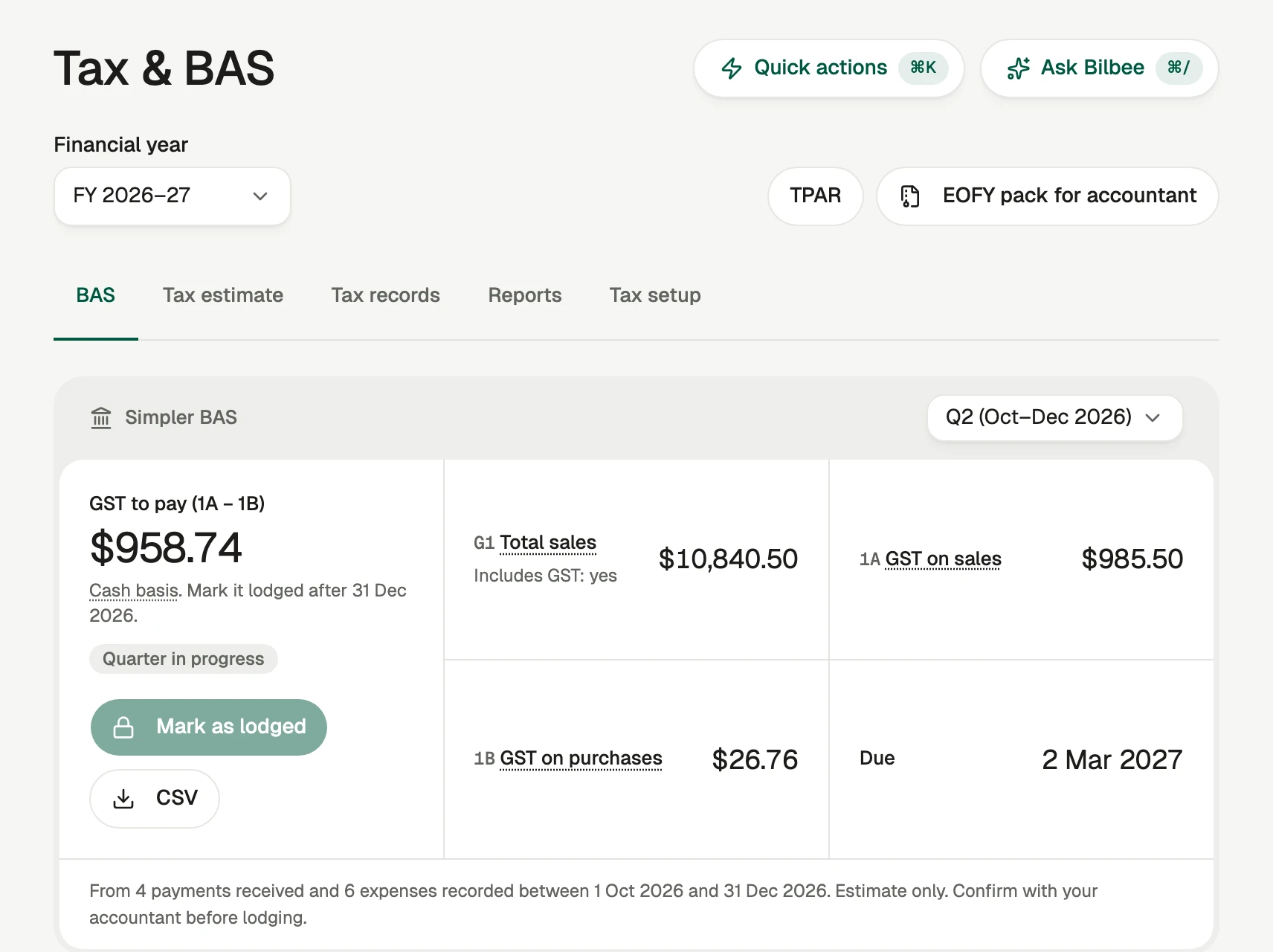
The BAS tab shows a quarter's Simpler BAS figures on a cash basis, for an account registered for GST: G1 Total sales, 1A GST on sales and 1B GST on purchases, and what that leaves to pay or have refunded. Pick the quarter at the top. The tab shows when it's due.

The BAS tab: GST to pay for the quarter, worked out from total sales, GST on sales and GST on purchases, with the due date and a button to mark it as lodged.

Bilbee doesn't lodge for you. Copy the three labels into myGov and lodge there, then choose Mark as lodged, which you can do once the quarter has ended. We save the figures as what you filed, and you can tick to record the GST as paid at the same time. Undo lodgement reverses it.

For a quarter you lodged from another app, or your accountant lodged before you moved here, choose Mark as lodged outside Bilbee. We then don't hold the figures you filed, and the tab says the figures are your books here.

If your books change after you've lodged, the tab says so. Marking a quarter lodged doesn't lock anything; a lock date in Tax setup does.

These are estimates from your books, not tax advice. It's worth checking them with your accountant before you rely on them.
Plans with it: every plan (Free, Standard and Pro).

IAS

The IAS tab is for an account that isn't registered for GST but pays PAYG instalments. It shows the quarter's 5A PAYG instalment, with T1 Instalment income and, on the rate method, T2 Instalment rate.

If you pay the amount the ATO gave you, the button is Mark as paid; if you work it out at the rate, it's Mark as lodged. Each records the quarter, and neither locks anything.

How you pay instalments is set in Tax setup, under PAYG instalments.

These are estimates from your books, not tax advice. It's worth checking them with your accountant before you rely on them.

Plans with it: every plan (Free, Standard and Pro).

Tax estimate

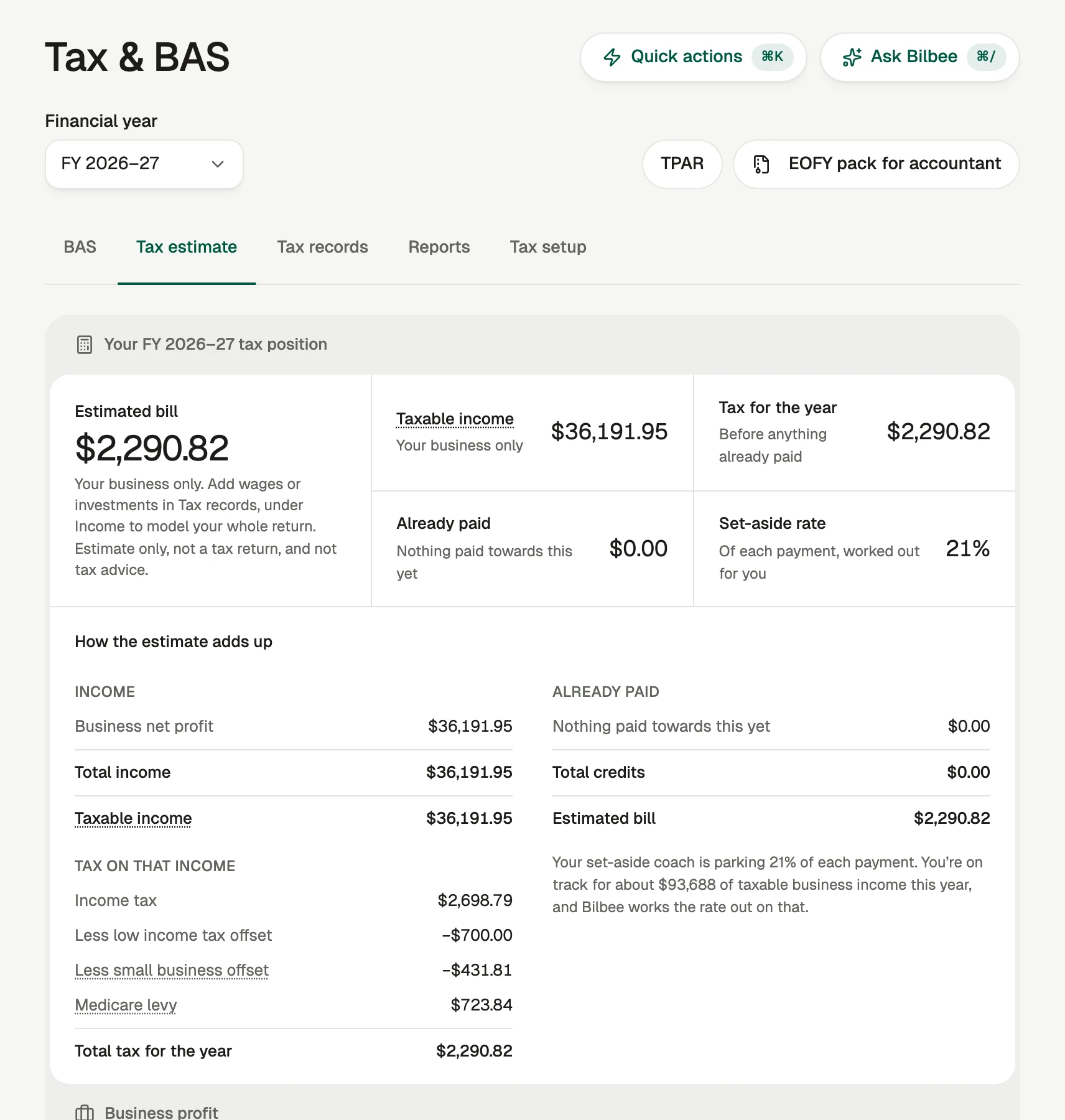
Tax estimate works out your whole year's position: Taxable income, Tax for the year, what's Already paid, and your Set-aside rate, ending in an Estimated bill or an Estimated refund position. How the estimate adds up shows each step. It's labelled an estimate, not a tax return, and not tax advice.

The Tax estimate tab: the estimated bill for the year, taxable income, tax already paid and the set-aside rate, and how the estimate adds up.

PAYG instalments you've paid go in here, under Paid this year: pick the quarter, enter the amount and date, and choose Record. They come off the estimate.

It uses everything on the Tax records tabs, so add other income and your deductions there for a fuller picture.

These are estimates from your books, not tax advice. It's worth checking them with your accountant before you rely on them.

Plans with it: every plan (Free, Standard and Pro).

Tax records: Income

Income under Tax records is for income outside the business, which the estimate adds in. Add income takes a Type: Salary or wages, Bank interest, Dividends, Rental property or Asset sale (capital gain), each with its own amounts.

Your situation holds what changes the tax on it: I have a HELP/HECS debt, I have private hospital cover, I have a spouse, and any losses carried forward. Choose Review details to change them; they save as you go.

Plans with it: every plan (Free, Standard and Pro).

Tax records: Deductions

Deductions under Tax records gathers what lowers your taxable income. Business expenses come from your Expenses page, with Add expense.

Home office: Log hours records the hours you work from home, at the rate shown per hour. Vehicle (cents per km): Log trip records the date, Kilometres and Purpose. Super contributions: Record contribution records one, and Notice of intent lodged marks that you've told your fund.

Logging hours or kilometres is choosing that method, and the estimate adds back the expenses it already covers. The Tax guide explains which costs each rate includes.

These are estimates from your books, not tax advice. It's worth checking them with your accountant before you rely on them.

Plans with it: every plan (Free, Standard and Pro).

Tax records: Assets

Assets is your Asset register: equipment that lasts years, across every financial year. Expenses flagged as a capital purchase land here, and Add asset adds one by hand with its Asset name, Purchase date, Cost (ex GST) and Business use (%).

Each asset's treatment is set for you from its cost: an Instant write-off, or listed for your accountant to pool or depreciate. Edit treatment in its menu changes it, and Delete asset removes it.

These are estimates from your books, not tax advice. It's worth checking them with your accountant before you rely on them.

Plans with it: every plan (Free, Standard and Pro).

Reports: Profit & loss and Income by client

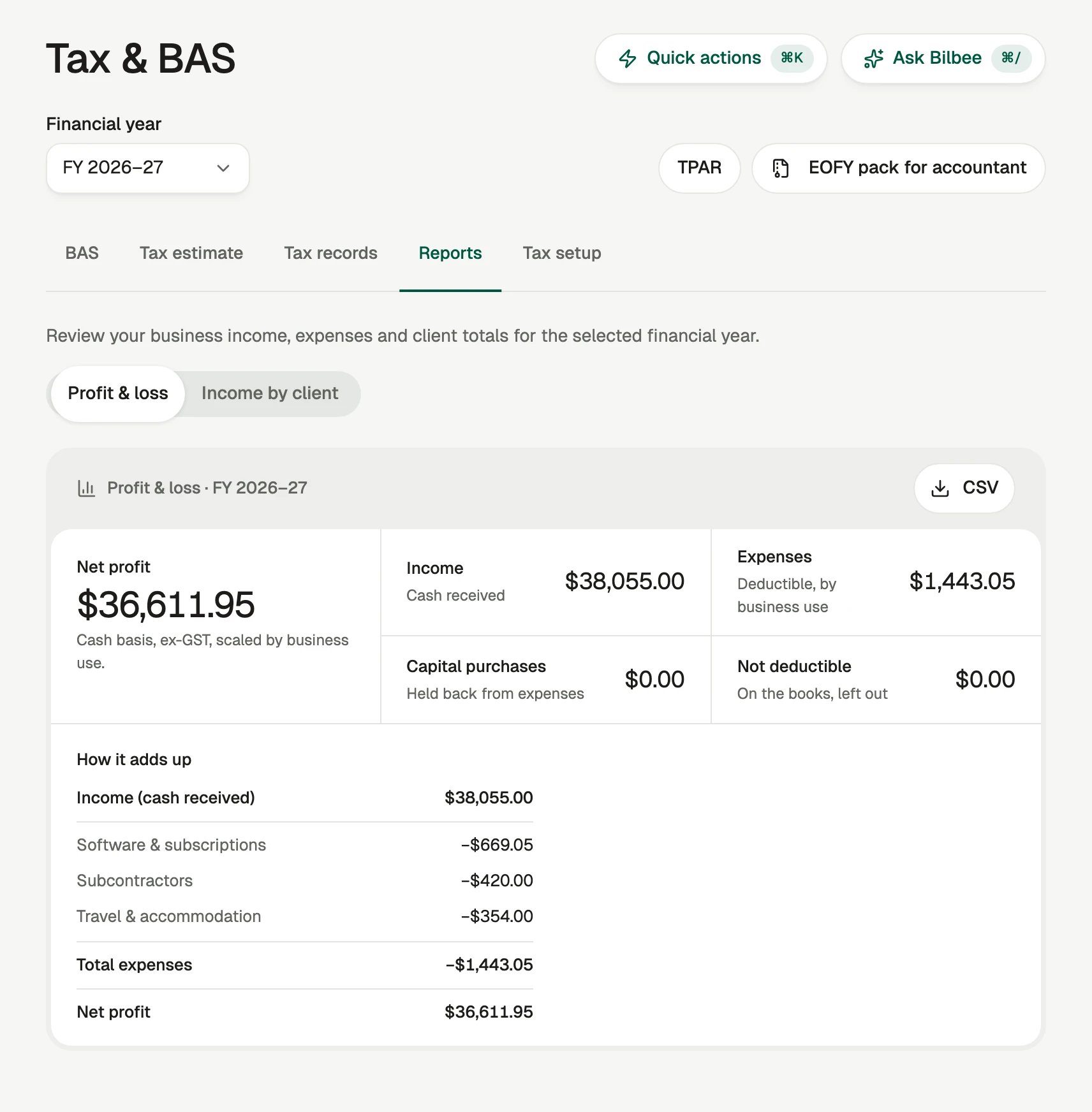
Profit & loss shows the year's Net profit on a cash basis, excluding GST and scaled by business use, with How it adds up by category. Capital purchases are held back from expenses, and costs that aren't deductible are shown on their own.

The Reports tab's profit and loss: net profit, income and expenses for the financial year, and how they add up by category.

Income by client lists what each client paid you in the year, with the GST in it. Both have a CSV download.

Plans with it: every plan (Free, Standard and Pro).

Tax setup

Tax setup holds the settings every year shares. GST registration is a switch that saves as you flip it; once on, check the GST registered from date under it and choose Save. PAYG instalments is Not in the system, Amount the ATO gave me or Rate the ATO gave me, with the figure.

Set-aside rate is Automatic, worked out for you from your year, or I’ll set it with your own percentage. It's the income tax share the Dashboard's Set aside for tax uses.

Lock date stops anything dated on or before it being added or changed, so a period you've settled stays as it was. Clear removes it.

Your accountant is at the bottom of this tab.

Plans with it: every plan (Free, Standard and Pro).

TPAR

TPAR gathers the year's payments to subcontractors, from expenses in the Subcontractors category, by payee, for the Taxable payments annual report. Each payee needs an ABN and an Address; Find ABN looks one up by name.

Export CSV downloads the figures to lodge through ATO Online Services. Whether TPAR applies to your business is worth confirming with your accountant.

Plans with it: every plan (Free, Standard and Pro).

Common questions

Does Bilbee lodge my BAS for me?

No. Bilbee works out the figures and you (or your accountant) lodge them in myGov. On the BAS tab of your tax page, copy the labels into myGov, lodge, then choose Mark as lodged so we keep a record of what you filed.

How do I tell Bilbee I'm registered for GST?

On your tax page, open Tax setup and turn on GST registration. It saves as soon as you switch it. Then check the GST registered from date that appears below it, and choose Save if you change it. Your invoices then include GST and are titled tax invoices, which must show your ABN, so add it in Settings, on the Business tab, if it isn't there yet.

Less admin. More time for your business.

Add your business details, send an invoice, record an expense. The estimate does the rest.

Start free

Free to start: five invoices a month, no card.