
Help

Quotes, credit notes and recurring invoices

Quotes and deposits, credit notes that correct an invoice, and invoices made on a schedule.

On this page
  1. Quotes
  2. Creating or editing a quote
  3. A quote's page
  4. Credit notes
  5. A credit note's page
  6. Recurring invoices
  7. Setting up a recurring template
  8. Common questions

Quotes

The Quotes page lists every quote, with Pending, Accepted (value) and Declined at the top. Filter by status (All quotes, Draft, Sent, Accepted, Declined, Converted), sort, or search. A sent quote past its Valid until date shows Expired.

New quote opens the builder. Each row's menu has View, Duplicate and Delete; a quote that became an invoice can't be deleted.
Plans with it: every plan (Free, Standard and Pro).

Creating or editing a quote

Quotes use the same builder as invoices, with Valid until in place of a due date and Notes / terms for scope and terms.

Client can respond online puts a secure link in the email where your client can accept or decline. With it on, Ask for a deposit sets a percentage: when they accept online, we send them the deposit invoice to pay straight away, and converting the quote later invoices the rest.

Finish with Save as draft or Save & send, or Update quote when editing.

Plans with it: every plan (Free, Standard and Pro).

A quote's page

A draft quote has Edit, Mark as sent and Send. The send dialog has an Email tab (choose Send quote) and a Share link tab with the Quote link.

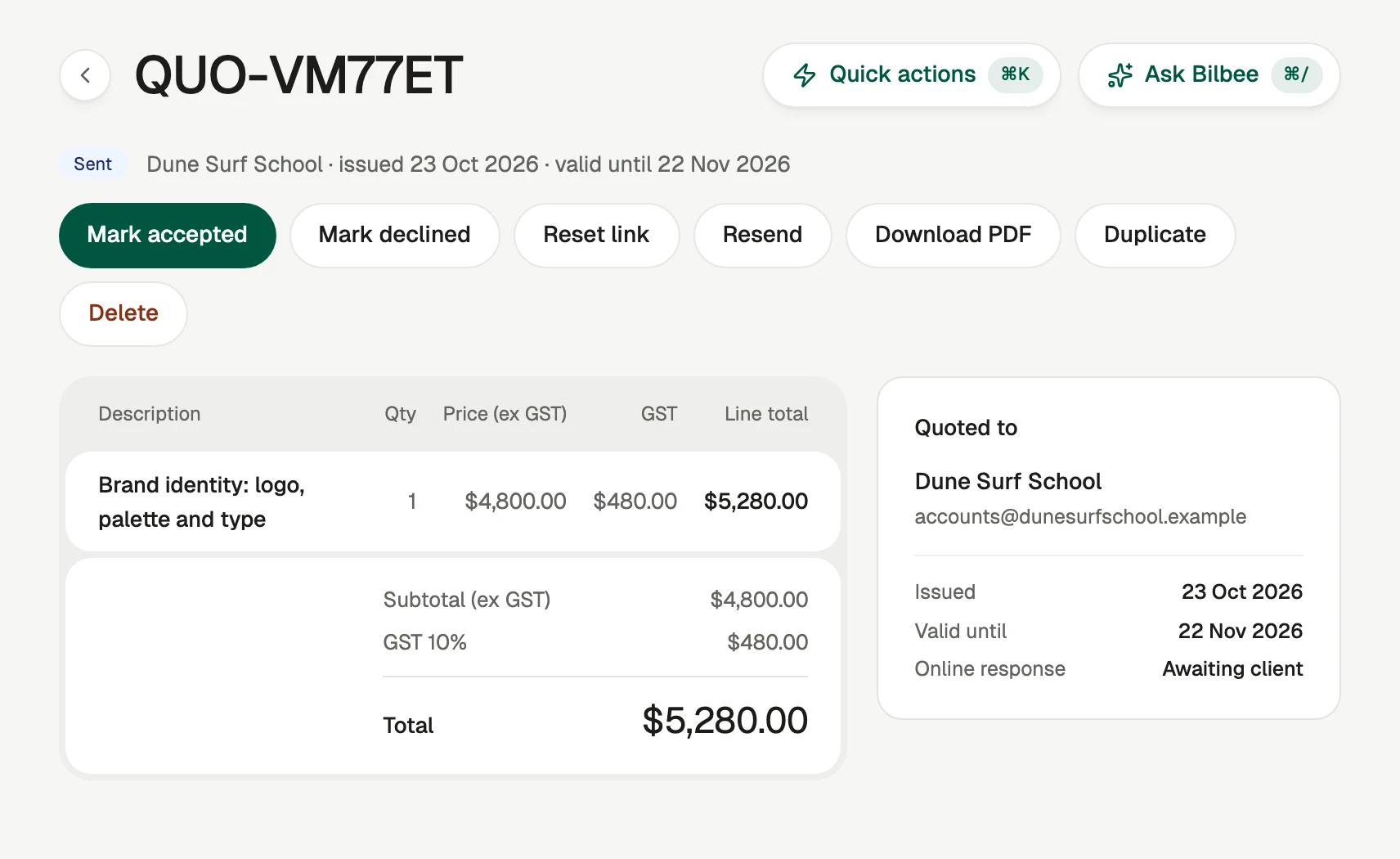
A sent quote's page: buttons to mark it accepted or declined, resend it or download the PDF, its line items and total, and the client's online response, still awaited.

Once sent, record your client's answer with Mark accepted or Mark declined. If the quote lets them respond online, they can accept or decline from the link themselves and you're notified; the answer shows on the page.

An accepted quote offers Invoice a deposit (a draft invoice for a percentage now) and Convert to invoice, which becomes Invoice the balance after a deposit. Reopen takes an answered quote back to sent and clears the answer. Download PDF, Duplicate, Reset link and Delete are there too.

Plans with it: every plan (Free, Standard and Pro).

Credit notes

A credit note corrects an invoice your client already has, in full or in part. It's always raised against an invoice: open the invoice and choose Create credit note from the More menu. A draft that's never been sent can't be credited; edit it instead.

The new credit note starts with the invoice's lines, so remove or change lines for a partial credit. Add a Reason, and turn on I've refunded this money with the Refunded on date if the money has already gone back. Then Create credit note.

The Credit notes page lists them all, each with the invoice it's against.

Plans with it: every plan (Free, Standard and Pro).

A credit note's page

A credit note's page shows what it credits and what's been returned. When money is owed back, Record a refund… records what you paid the client and when, and Apply to invoice… sets the credit off against another invoice of theirs that's still owing.

PDF, Copy link and Reset link share it with your client. Delete removes it and reverses its BAS adjustment.

Plans with it: every plan (Free, Standard and Pro).

Recurring invoices

Recurring templates make invoices on a schedule. Bilbee creates them early each morning, whether or not you're signed in. New template starts one.

The list shows each template's Frequency, Next run and status (Active or Paused). Run now makes the next invoice straight away, as a draft. Each row's menu has Preview PDF, Edit, Pause or Activate, and Delete, which stops the schedule and leaves invoices it already made alone.

Standard and Pro have no limit. Paused templates don't count.

Active recurring invoices: 2 on Free; no limit on Standard and Pro.

Plans with recurring invoices that send themselves: Pro.

Setting up a recurring template

Give it a Template name, pick the Client and the Frequency (Weekly, Fortnightly or Monthly), and set the Next run date: the day the first invoice is made, early in the morning.

Auto-send when generated emails each invoice to the client as it's made; leave it off and each waits as a draft. Sending recurring invoices automatically comes with Pro.

A next run date in the past makes one invoice for every period since then, as drafts for you to check, and a date more than a year back is refused.

Add the Line items and any Notes, then Create template, or Update template when editing.

Active recurring invoices: 2 on Free; no limit on Standard and Pro.

Plans with recurring invoices that send themselves: Pro.

Common questions

Can invoices go out on a schedule?

Yes. On the Recurring page, choose New template. Each period's invoice is created early that morning and waits as a draft, or on Pro it can email itself to your client if you turn on Auto-send when generated.

Less admin. More time for your business.

Add your business details, send an invoice, record an expense. The estimate does the rest.

Start free

Free to start: five invoices a month, no card.