
Help

Invoices

Creating, sending and correcting invoices, recording payments and the items you reuse.

On this page
  1. Invoices
  2. Creating or editing an invoice
  3. Drafting an invoice or quote from a sentence
  4. Sending an invoice
  5. An invoice's page
  6. Recording a payment on an invoice
  7. Products & services
  8. Common questions

Invoices

The Invoices page lists every invoice, with Outstanding, Paid this month and Overdue totals at the top. Filter by status (All invoices, Open, Draft, Sent, Part-paid, Paid, Overdue, Credited, Voided), sort, or search by number or client.
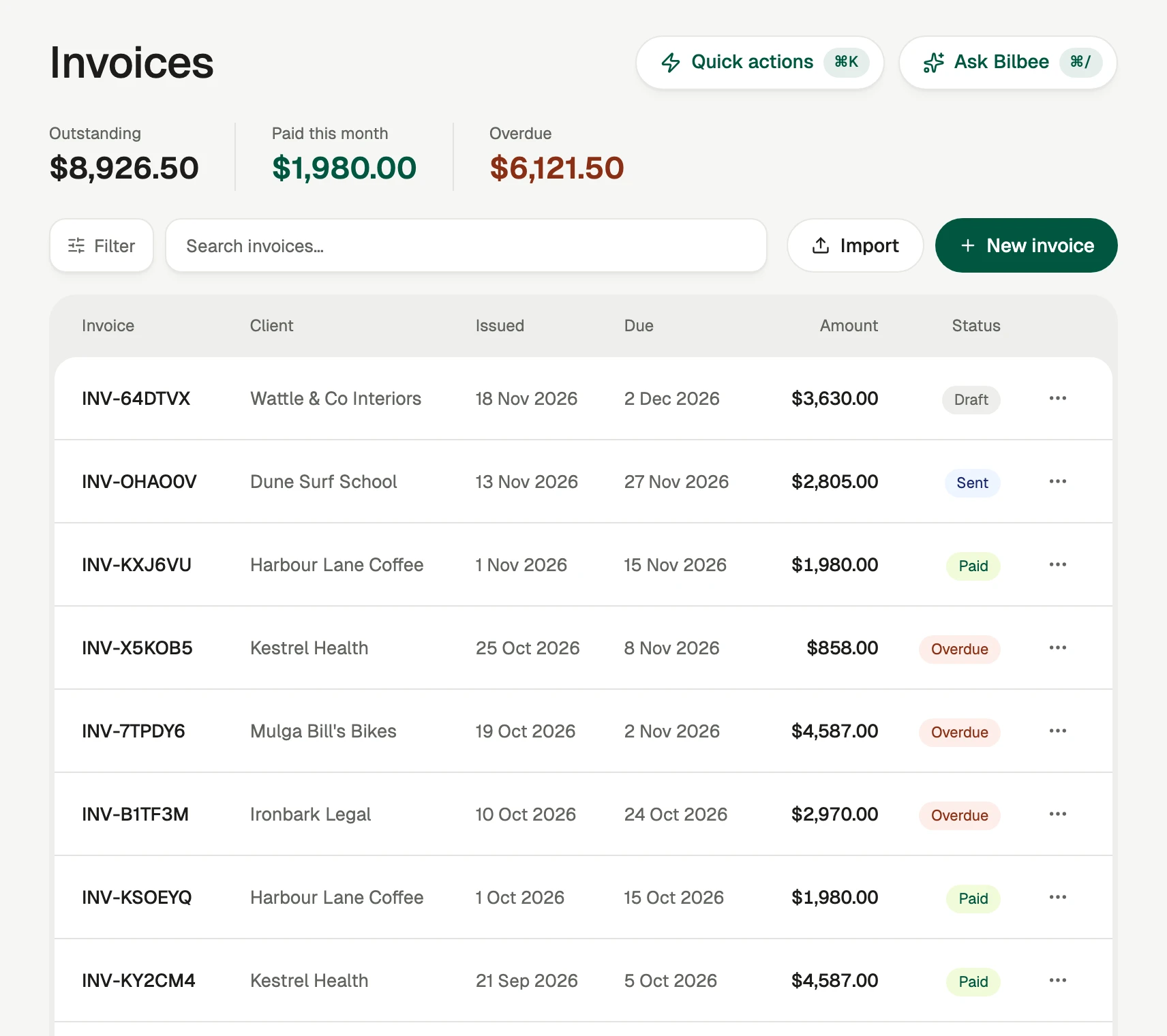
The Invoices screen: totals outstanding, paid this month and overdue, above a list of invoices with each one's client, dates, amount and status.

New invoice opens the builder. Import brings in invoices from another app as a CSV, sorted into Still owing, Paid this financial year and Not imported before anything is saved, and Undo this import takes them out again straight after.

Each row's menu has View, Mark paid (it records a payment of the balance dated today), Duplicate, and Delete draft for a draft you've never sent or Void invoice for anything else. To record a different amount or date, open the invoice and use Record payment.

When your plan caps invoices, the page says how many you've issued this month. Standard and Pro have no monthly limit.
Invoices issued a month: 5 on Free; no limit on Standard and Pro.

Creating or editing an invoice

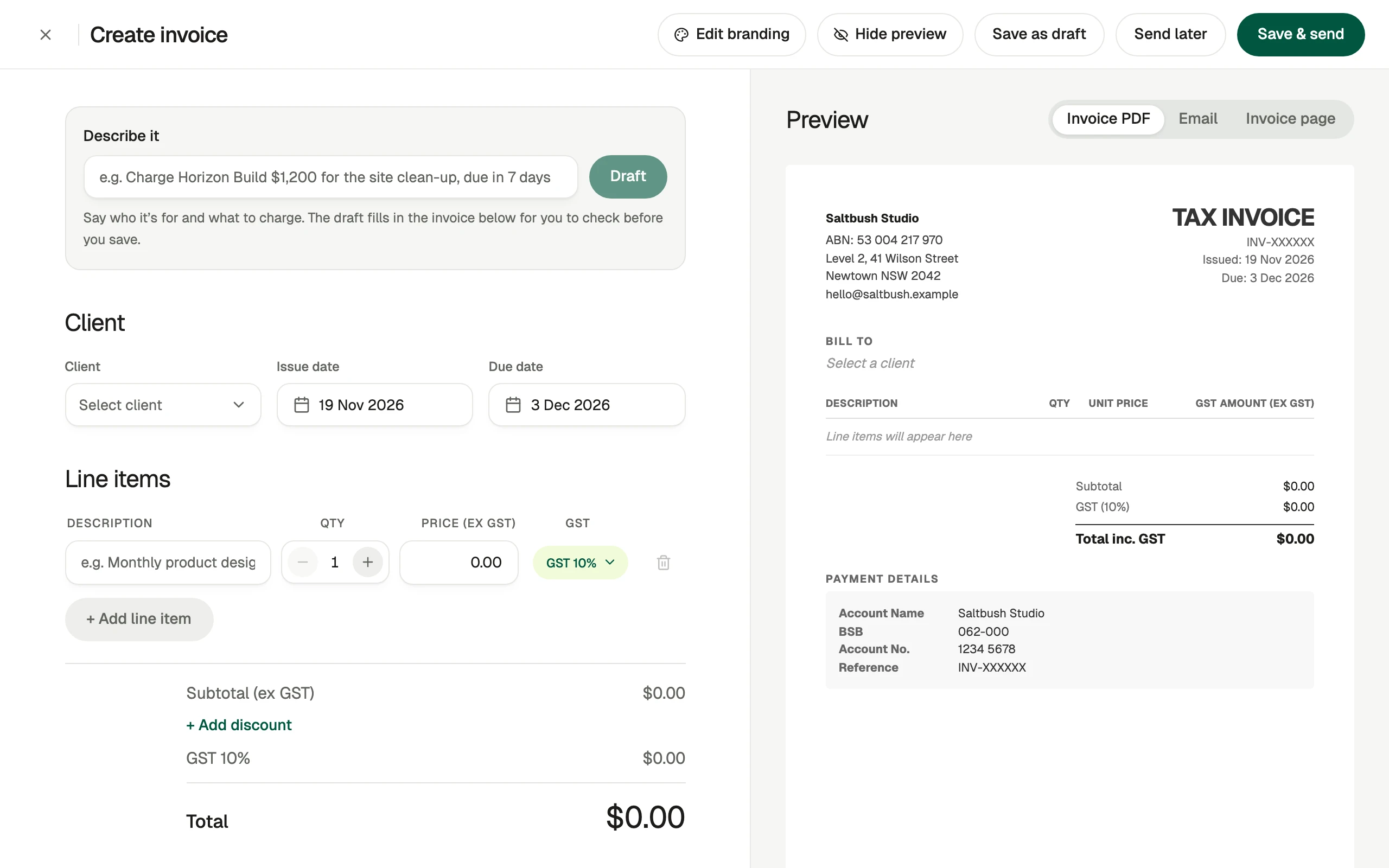
The builder fills the screen, with a live preview beside the form. Pick the Client (or New client…), the Issue date and Due date, then the Line items: Description, Qty, price and GST (GST 10%, GST-free or Export). + Add line item adds a row, + Add saved item adds one from Products & services, and + Add discount takes a percentage or a dollar amount.

Creating an invoice: the Describe it box, client, dates and line items on the left, and a preview of the invoice PDF on the right.

Notes / payment instructions prints on the invoice. On a new invoice, when the client has unbilled time or billable expenses, the builder offers to add them.

To finish, Save as draft keeps it to send later, Save & send saves it and opens the send dialog, and Send later schedules it. Editing a draft, the button is Update invoice. Edit branding opens your logo and theme.

The document is titled a tax invoice only when you're registered for GST and your ABN is in Settings. Otherwise it's an invoice.

Plans with it: every plan (Free, Standard and Pro).

Plans with scheduled sending: Pro.

Drafting an invoice or quote from a sentence

Describe it at the top of a new invoice or quote drafts it from a sentence, such as who it's for, what to charge and when it's due. Choose Draft (or press Enter) and the form below fills in for you to check before you save. Nothing is saved or sent until you do it.

If the sentence names someone who isn't a client yet, it offers to add them as one. It's switched on or off with Show the Describe it box in Settings, on the Defaults tab, under Drafting from a sentence.

Drafts from a sentence a month: 10 on Free; 100 on Standard; no limit on Pro.

Sending an invoice

Send opens a dialog with two tabs. Email sends it to the client's email on file, with a Subject and Message you can change, and Email me a copy for your own records. Under Documents, Add a file attaches a file, and when the invoice has billed time, Timesheet attaches a PDF of it. Choose Send invoice. Documents come with Standard and Pro.

Share link gives the Invoice link, where your client can view the invoice and download the PDF with no sign-in. Sending it yourself? Mark as sent there starts due-date tracking.

Schedule send picks a day (Send on) and time (At) for us to email a draft. Scheduled sending comes with Pro.

Nothing goes to a client until your business has a name, your own email address is confirmed and, if you're registered for GST, your ABN is in Settings. The refusal says which one is missing.

Plans with scheduled sending: Pro.

Plans with documents: Standard and Pro.

An invoice's page

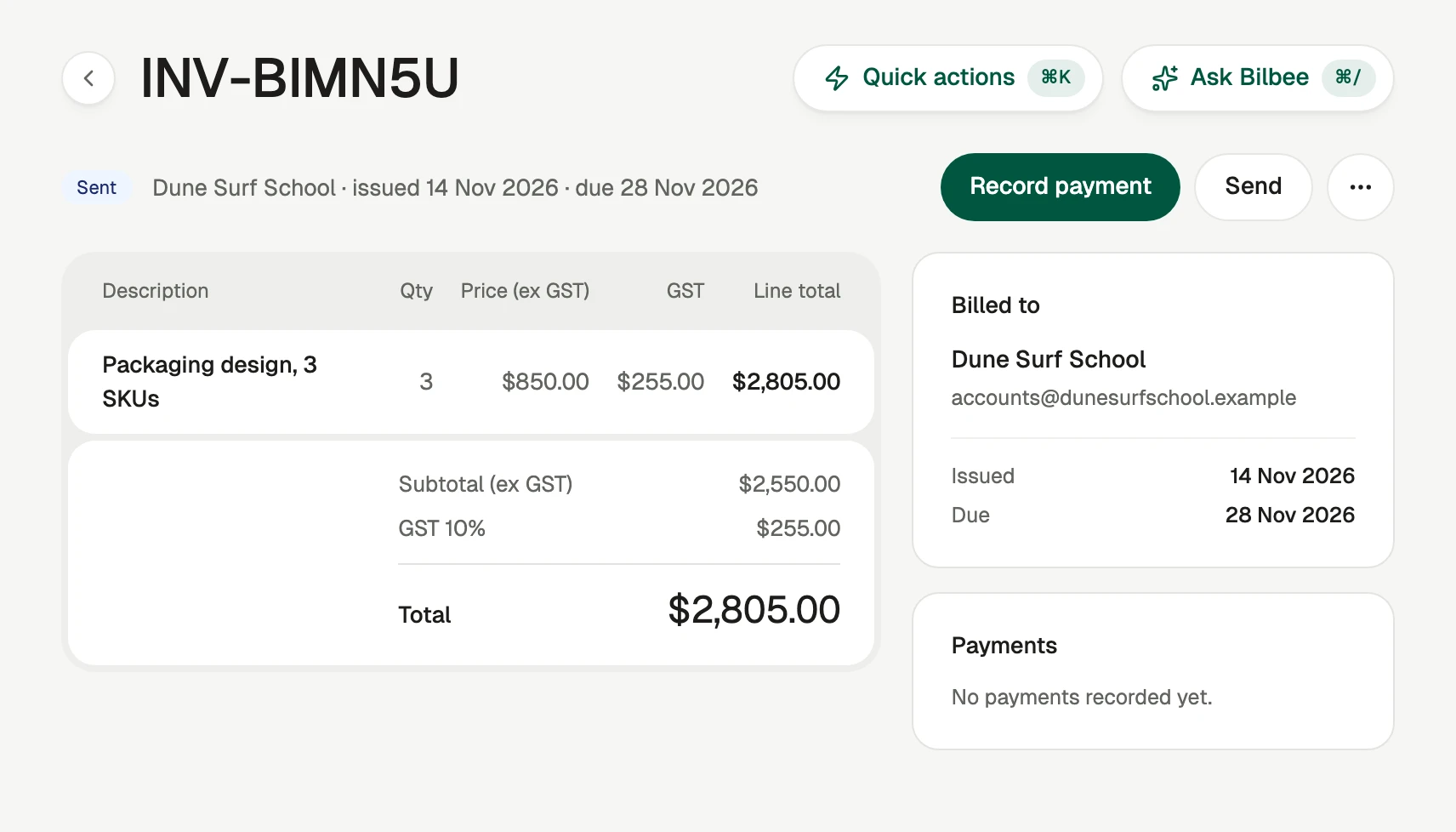
An invoice's page shows the document, its payments and its credit notes, and the one button it's waiting on: Send for a draft, Record payment once it's out and owed. Edit opens a draft you've never sent in the builder. On an issued invoice the second button is Send, or Send reminder once it's overdue or part-paid.

A sent invoice's page: its status, client and dates, the line items and total, Record payment and Send buttons, and a Payments panel with none recorded yet.

The More menu holds the rest. For a draft: Schedule send and Mark as sent, for when you sent it yourself. Once issued: Change due date or notes, Correct and reissue, Create credit note, and Add late fee when it's past due. Always: Download PDF and Duplicate, Reset client link when it has one, and last Delete draft or Void invoice.

Once issued, the lines, discount, issue date and client are fixed, because your client holds that version. Correct and reissue opens a copy to fix, for the same client. Your client keeps the original until you send the copy, which voids it and says which invoice it replaces. Once money has been recorded against an invoice, a credit note is the way to change it. Void needs a Reason and keeps the invoice on file. If you're not registered for GST and the invoice carries GST, Reissue without GST replaces it with a copy that has none.

If the last email bounced, the page says this invoice didn't reach your client, and reminders and late fees wait until you choose Send again.

Plans with it: every plan (Free, Standard and Pro).

Plans with scheduled sending: Pro.

Plans with automatic payment reminders, late fees and customer statements: Standard and Pro.

Recording a payment on an invoice

Record payment takes the Amount (AUD), the Date received, the Method (Bank transfer, Card, Cash or Other) and a Reference (optional). Email a receipt to the client is offered when they have an email address. The invoice moves to part-paid or paid by itself.

Payments are listed on the invoice's Payments card, where each can be deleted. A payment matched from your bank statement on the Reconcile page shows there too.

If a client paid by card through your own Stripe account, the payment is recorded for you.

Plans with it: every plan (Free, Standard and Pro).

Products & services

Products & services holds saved items: lines you reuse on invoices and quotes. New item takes a Description *, a Unit price and, when you're registered for GST, its GST treatment. Enter the price excluding GST.

In the builder, + Add saved item drops one onto the invoice or quote. Each row's menu has Edit, Archive or Restore, and Delete. Deleting an item leaves invoices that already used it unaffected.

Plans with it: every plan (Free, Standard and Pro).

Common questions

Can I delete an invoice?

A draft you've never sent, yes: open it and choose More → Delete draft.

Once an invoice has been sent it's a business record, so you void it instead: More → Void invoice, with a reason. It stays on file, and your client's copy shows it as cancelled. If it has payments or a credit note against it, deal with those first.

How do I fix a mistake on an invoice I've already sent?

Once sent, an invoice's lines, discount, issue date and client are fixed, because your client already holds that version. To fix a mistake, choose More → Correct and reissue: it opens a copy to edit, and when you send the copy we void the original and the email tells your client the new one replaces it. Your client keeps the original until then, and if they open its link afterwards, it says it was replaced and takes them to the new one.

If money has already been recorded against it (a payment or a credit note), add a credit note instead (More → Create credit note): that is the document for changing what was charged.

Charged GST when you're not registered for it? Reissue without GST on the invoice page replaces it with a copy that has none.

Can clients pay my invoices by card?

Yes, through your own Stripe account. In Settings, on the Payments tab, connect it under Card payments and switch on the Pay now button. Clients can then pay by card, Apple Pay or Google Pay from the invoice link you send.

Stripe's fee comes out of your payout. Card surcharges on eftpos, Mastercard and Visa ended on 1 Oct 2026 under the Reserve Bank's rules, so Bilbee no longer adds one at checkout.

Can Bilbee chase late payers for me?

Yes, on Standard and Pro. In Settings, on the Defaults tab, turn on Send automated payment reminders. Late fees are on the same tab and stay off until you turn them on.

Less admin. More time for your business.

Add your business details, send an invoice, record an expense. The estimate does the rest.

Start free

Free to start: five invoices a month, no card.