
Help

Settings

Your business details, your branding, how clients pay you and your defaults.

On this page
  1. Settings
  2. Settings: Business
  3. Settings: Branding
  4. Settings: Payments
  5. Settings: Defaults

Settings

Settings holds your business details, in four tabs: Business, Branding, Payments and Defaults. One Save settings button under them saves every tab at once, so an edit on one tab is kept while you look at another.

Card payments, the Describe it switch and a new receipt inbox address save straight away, without Save settings.

GST registration, the set-aside rate and PAYG instalments are on the tax page, in Tax setup. Your sign-in, plan and data are on your Account page.
Plans with it: every plan (Free, Standard and Pro).

Settings: Business

Business profile is what your invoices show: Trading name (the name your clients see on every email), ABN, Address, Email, Phone and Website. Under the ABN, we show what the Australian Business Register says about it.

Time zone sets when your business day starts and ends: invoice dates, overdue status, reminders and BAS quarters all follow it.

Email signature appears under your sign-off on the emails you send clients. Switch on Email me a copy of invoices and quotes I send to be copied in on every send.

The receipt inbox's forwarding address is on this tab too.

Plans with it: every plan (Free, Standard and Pro).

Plans with the receipt inbox: Standard and Pro.

Settings: Branding

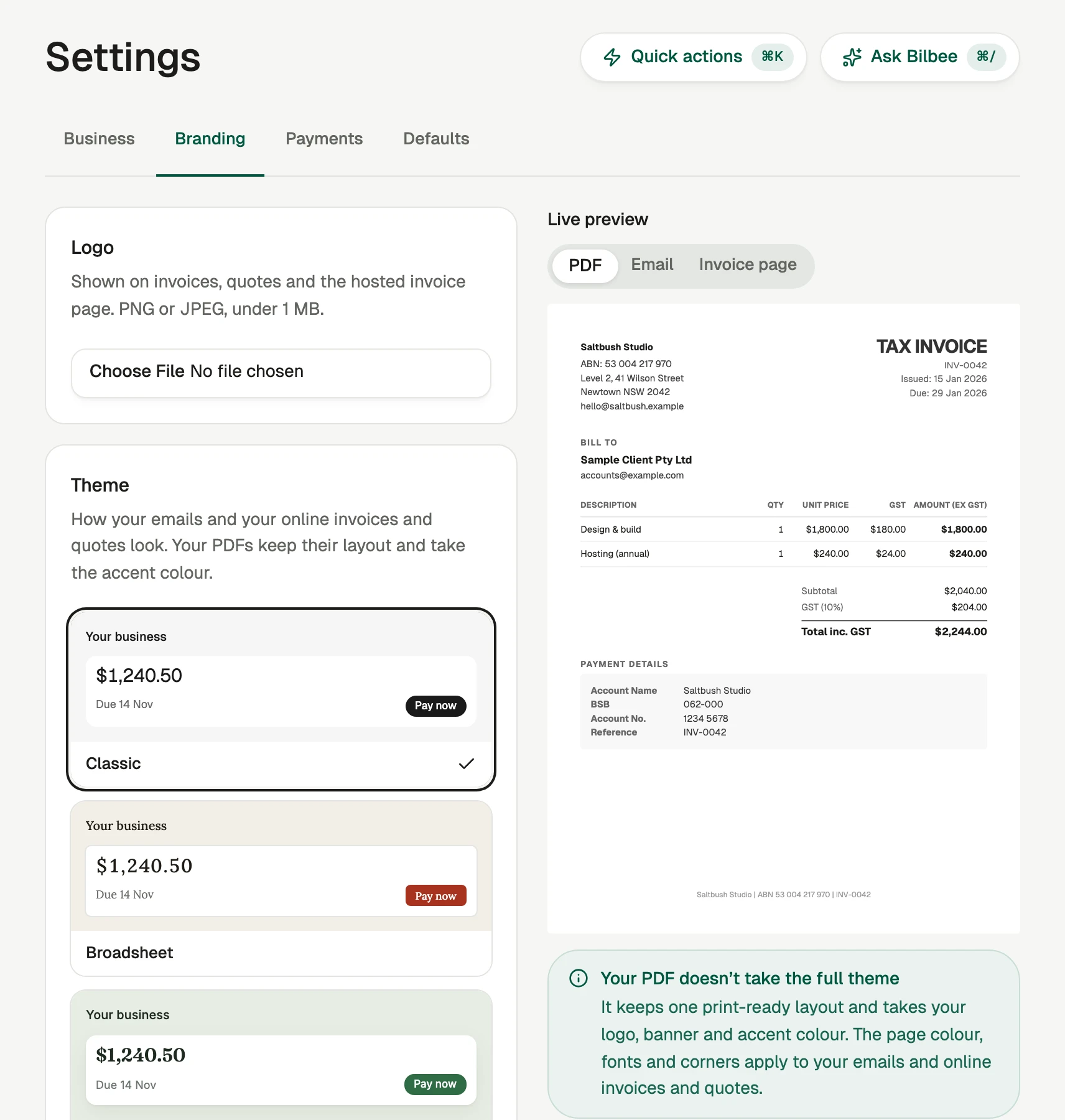
Logo goes on your invoices, quotes and the online invoice page. Theme sets how your emails and online invoices and quotes look: pick one, and Customise it to change its colours, fonts, corners, shadow and spacing. The Accent colour also marks your PDFs. Banner image adds an optional banner. Live preview shows the result as you go.

Branding settings: the logo, a choice of themes for emails and online invoices, and a live preview of the invoice PDF.

Every email and online page carries a small Powered by Bilbee line. On Pro, Remove the Powered by Bilbee line takes it off from your next send.

Plans with it: every plan (Free, Standard and Pro).

Plans with the Powered by Bilbee line removed: Pro.

Settings: Payments

Bank details print on your invoices for EFT: BSB, Account number, Account name and an optional PayID.

Card payments take payment through your own Stripe account. Connect with Stripe signs you in to Stripe, or makes an account there, and brings you back. Once connected, Show a Pay now button on hosted invoice pages lets clients pay by card from the invoice link. Stripe's fee comes out of your payout. Disconnect Stripe stops it.

Plans with it: every plan (Free, Standard and Pro).

Settings: Defaults

Invoice defaults fill in each new invoice: Invoice prefix (the start of each number), Default due days, the Hourly rate for time, and Default notes. Quote defaults does the same for quotes, with Quote prefix and Default valid days.

Payment reminders: Send automated payment reminders emails your client before or after the due date, on the days you tick. Late fees: Add late fees automatically adds a flat amount or a percentage of the balance after a Grace period (days). Both stay off until you turn them on. Automatic reminders and late fees come with Standard and Pro.

Drafting from a sentence holds the Show the Describe it box switch, which saves as you flip it.

Plans with it: every plan (Free, Standard and Pro).

Plans with automatic payment reminders, late fees and customer statements: Standard and Pro.

Less admin. More time for your business.

Add your business details, send an invoice, record an expense. The estimate does the rest.

Start free

Free to start: five invoices a month, no card.